Setting Up To use Dial-up
Networking
PRINT OUT THIS SHEET BEFORE YOU
START
1. Be sure you have your Windows 95/98 CD-ROM or Floppy
Disks Handy (1st time setup only)
2. Leave plenty of time to set up, (some computers take 20
minutes)
3. Click on the Start Button.
4. Slide up to Settings
5. Slide across to Control Panel
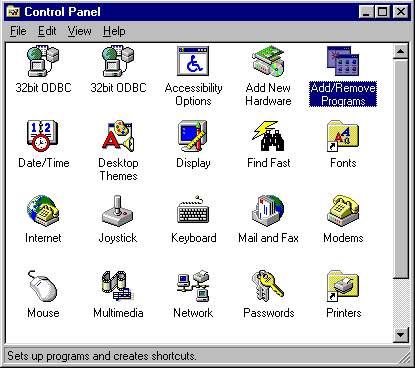
6. Double Click on Add/Remove Programs
7. Click the tab labelled Windows Setup
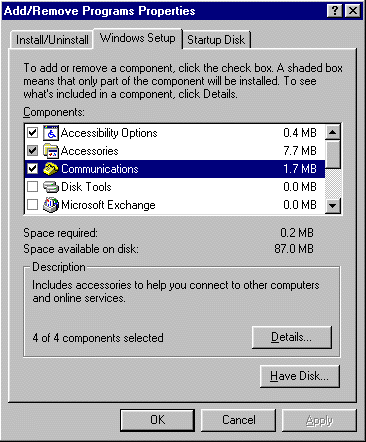
8. Then bring the scroll bar down to Communications
9. Click Details
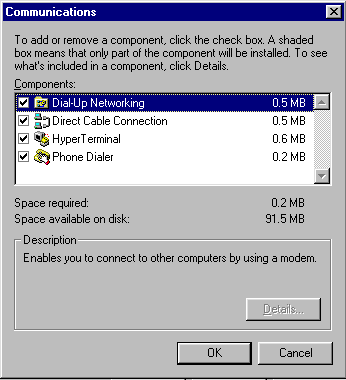
10. Put a Check mark in the Dial-up Networking box and Click
OK
11. Windows will now install Dial Up networking for you.
12. Now Double Click on "My Computer"
13. Double Click on Dial-up Networking
14. Double Click on Make New Connection
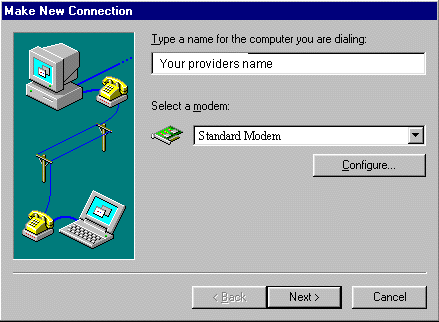
Fill out this screen as the graphic indicates Your modem will
either be standard 28.8k or 14.4k modem MAKE
SURE YOU PICK STANDARD 28.8 or STANDARD 14.4 (if they
are not listed install one in the control panel under modems,
then pick add, then pick "Do not detect my modem I'll pick it
from a list.)
press NEXT
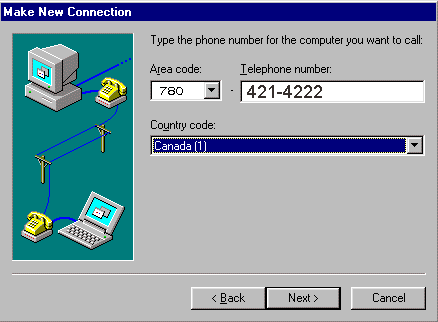
15. Fill out this screen as the graphic indicates and press
NEXT
After you have clicked NEXT this screen should appear.
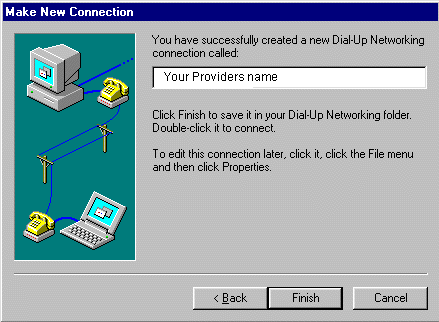
17. Click Finish.
Now we have to add TCP/IP Networking (The language your
computer uses to talk to the Internet) to your computer.
Adding TCT/IP to your Dial-up Adapter
(Networking)
1. Click on Start
2. Slide up to Settings
3. Slide over to Control Panel
4. Double Click on Networking
This Screen Should appear
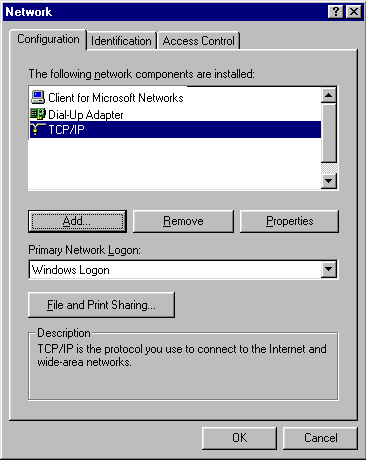
I Cannot stress enough that the
ABOVE SCREEN MATCHES EXACTLY,
if you have a problem it probably stems from this
screen 99% of the time this screen cannot deviate at all from
the above example,
this means if your screen has 3 TCP/IP's
on it remove 2 of them !!
5. Now click on ADD
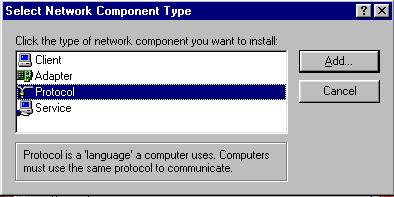
6. Pick Protocol and click add
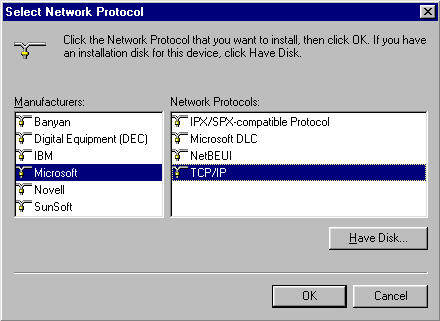
7. Pick Microsoft, and TCP/IP from the lists and Click OK
Windows will install the needed files from disk
8. Now Click on TCP/IP
9. Click on Properties (the following screen will appear)
10. Click on IP Address from the tabs at the top of the
screen.
11. Obtain IP Address Automatically Must be checked off
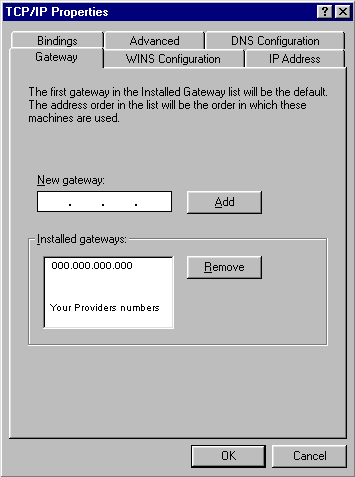
12. Click on Gateway type 000.000.000.000 (your ISP'S Numbers)
Press Add
(the address you typed will move down to the lower box)
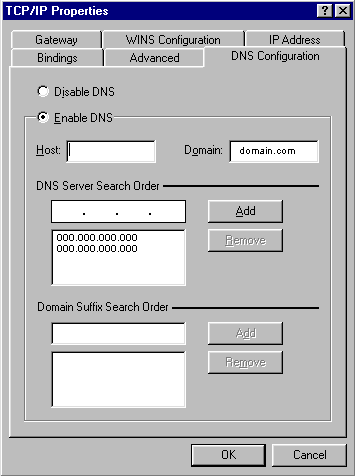
14. Now Click on DNS Configuration click Enable DNS
15. In the box labelled DNS Server Search Order
16. Type 000.000.000.000 (Your providers DNS Numbers) and
press add
17. type 000.000.000.000 (Your providers secondary DNS Numbers
and press add
18. in the Host box type in your login ID
19. in Domain type in yours providers domain name
20. Press OK
21. In the next screen Press OK
22. The computer will now need a reboot
23. press OK to reboot the machine
24. You are now setup for Dial up networking
Then Type "EXIT"
and REBOOT the computer.
25. Now to connect to the Internet open up "My Computer" open
Dial-up networking and Click on "Internet Providers Name" (You
could drag this icon onto the desk top making a short cut)
This screen will show up
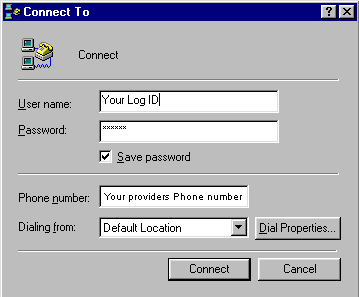
26. Type in your user name in the User name box
27. Type in your Password in the Password box
28. Check off save password (this may not work on all
installations)
29. Click Connect
30. The computer will dial and go through a login sequence
once you see a "Connected" screen Surf the net !
To configure your system to dial
Western Canada Internet use the following settings: TEXT
VERSION
NOTE! If you have never
connected your computer to the Internet. "click Start"
then Run, In the box provided, type inetwiz and
follow the instructions there. This procedure requires that
you have the Windows CD. If you do not have the Windows CD you
CANNOT Install the Dial-up Networking. The inetwiz works in
Wndows 95,98,ME and 2000
Double Click on "My Computer"
Double Click on "Dial-Up Networking"
Double Click on "Make New Connection" Call it "Western Canada
Internet" Click “Next”
Enter the phone number "421-4222" Click “Next or finish” until
the program is done
Double Click on the newly created "Western Canada Internet"
connection, when prompted, type in your “username and then
type in your password.
Click "Connect”
The modem should dial, and you will be connected to the
internet. |






